
The Linux boot procedure is complex and fascinating. Let’s dive in and explore how it all happens.
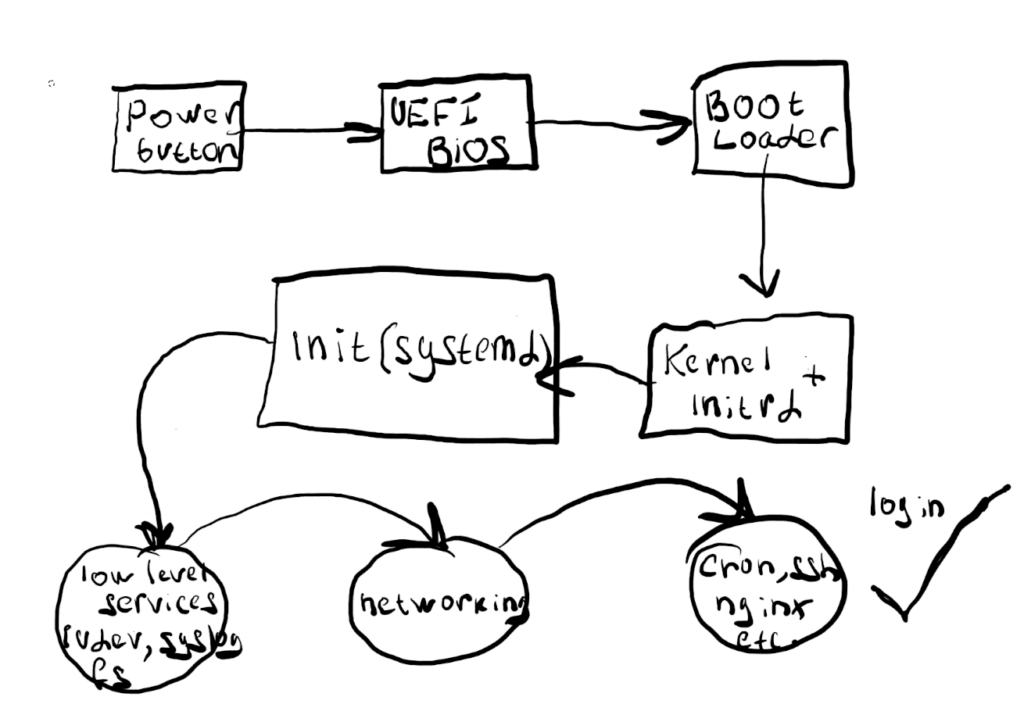
Imagine you’ve just pressed the power button. What happens next?
Early initialization. BIOS/UEFI
Upon pressing the power button, your PC will load a firmware program to detect the existing hardware and available boot devices. There are two common types of firmware on x64 machines:
- Basic Input Output System (BIOS)
- Unified Extensible Firmware Interface (UEFI)
The primary task of BIOS/UEFI is to read the boot loader from the boot device and load it into memory. However, they accomplish this in slightly different ways.
UEFI, on the other hand, works with a GUID Partition Table (GPT). It mounts a specific EFI partition and loads the boot loader from it. Essentially, BIOS handles raw disk space, while UEFI works with the FAT file system on the EFI partition.
BIOS works with an older disk partition table called the Master Boot Record (MBR). A key limitation of BIOS is that MBR cannot be used with disks larger than 2.2TB.
Boot loader
Once the BIOS/UEFI firmware has successfully loaded the boot loader, what happens next in our boot process?
The boot loader’s main task is to locate the kernel and load it with the appropriate configuration parameters. GRUB2 is the most commonly used boot loader on Linux systems. It has its own configuration file called grub.cfg, which is typically located in one of the following directories:
- /boot/grub2/grub.cfg
- /boot/efi/EFI/<OS_name>/grub.cfg
This configuration file contains all the operating system entries available for boot. For example, here’s a snippet from the GRUB2 configuration on my machine, which runs openSUSE Tumbleweed:
opsvoice:~ # cat  /boot/grub2/grub.cfg|egrep "menuentry|vmlinuz"
menuentry 'openSUSE Tumbleweed'  --class opensuse --class gnu-linux --class gnu --class os $menuentry_id_option 'gnulinux-simple-68f0387a-23a2-4368-bb0d-f42e7a4a4389' {
	linux	/boot/vmlinuz-6.14.0-1-default root=UUID=68f0387a-23a2-4368-bb0d-f42e7a4a4389  ${extra_cmdline} splash=silent mitigations=auto quiet security=apparmor
submenu 'Advanced options for openSUSE Tumbleweed' --hotkey=1 $menuentry_id_option 'gnulinux-advanced-68f0387a-23a2-4368-bb0d-f42e7a4a4389' {
	menuentry 'openSUSE Tumbleweed, with Linux 6.14.0-1-default' --hotkey=2 --class opensuse --class gnu-linux --class gnu --class os $menuentry_id_option 'gnulinux-6.14.0-1-default-advanced-68f0387a-23a2-4368-bb0d-f42e7a4a4389' {
		linux	/boot/vmlinuz-6.14.0-1-default root=UUID=68f0387a-23a2-4368-bb0d-f42e7a4a4389  ${extra_cmdline} splash=silent mitigations=auto quiet security=apparmor
	menuentry 'openSUSE Tumbleweed, with Linux 6.14.0-1-default (recovery mode)' --hotkey=3 --class opensuse --class gnu-linux --class gnu --class os $menuentry_id_option 'gnulinux-6.14.0-1-default-recovery-68f0387a-23a2-4368-bb0d-f42e7a4a4389' {
		linux	/boot/vmlinuz-6.14.0-1-default root=UUID=68f0387a-23a2-4368-bb0d-f42e7a4a4389 single  ${extra_cmdline}
	menuentry 'openSUSE Tumbleweed, with Linux 6.13.8-1-default'  --class opensuse --class gnu-linux --class gnu --class os $menuentry_id_option 'gnulinux-6.13.8-1-default-advanced-68f0387a-23a2-4368-bb0d-f42e7a4a4389' {
		linux	/boot/vmlinuz-6.13.8-1-default root=UUID=68f0387a-23a2-4368-bb0d-f42e7a4a4389  ${extra_cmdline} splash=silent mitigations=auto quiet security=apparmor
	menuentry 'openSUSE Tumbleweed, with Linux 6.13.8-1-default (recovery mode)' --hotkey=1 --class opensuse --class gnu-linux --class gnu --class os $menuentry_id_option 'gnulinux-6.13.8-1-default-recovery-68f0387a-23a2-4368-bb0d-f42e7a4a4389' {
		linux	/boot/vmlinuz-6.13.8-1-default root=UUID=68f0387a-23a2-4368-bb0d-f42e7a4a4389 single  ${extra_cmdline}
menuentry 'Windows Boot Manager (on /dev/nvme0n1p1)' --class windows --class os $menuentry_id_option 'osprober-efi-24E6-6CAE' {
	menuentry 'UEFI Firmware Settings' $menuentry_id_option 'uefi-firmware' {
Each menuentry contains information about the modules that GRUB2 needs to load before it can attempt to activate the kernel. Here’s an example from my system, which uses LUKS2 encryption and Btrfs:
	menuentry 'openSUSE Tumbleweed, with Linux 6.13.8-1-default (recovery mode)' --hotkey=1 --class opensuse --class gnu-linux --class gnu --class os $menuentry_id_option 'gnulinux-6.13.8-1-default-recovery-68f0387a-23a2-4368-bb0d-f42e7a4a4389' {
		load_video
		set gfxpayload=keep
		insmod gzio
		insmod part_gpt
		insmod cryptodisk
		insmod luks2
		insmod gcry_rijndael
		insmod gcry_rijndael
		insmod gcry_sha256
		insmod btrfs
Since the Linux kernel is modular, many kernel modules are stored on the file systems. Some of these modules are necessary to access the file systems themselves (e.g., when using LVM2 or software RAIDs, or something like that). Therefore, each menu entry includes a path to the initial ram disk (initrd):
initrd /boot/initrd-6.13.8-1-defaultThe initrd is a compressed image containing essential kernel modules needed to successfully boot the kernel.
The Init process
After GRUB2 loads the kernel into memory, the kernel mounts initrd as a temporary root (/) file system. The kernel then uses available modules to access the disks and file systems, eventually mounting the real root file system.
Once the real root file system is mounted, the kernel starts the init process, which is always located at /sbin/init. On my system, this is a symlink to /lib/systemd/systemd:
opsvoice:~ # file /sbin/init
/sbin/init: symbolic link to ../lib/systemd/systemd
In modern Linux systems, systemd is the standard solution for initializing the system and services. Therefore, /sbin/init is almost always just a symlink to the systemd daemon.
Systemd takes care of the following tasks:
- It launches low-level daemons and services, such as udevd (for device management) and syslog (for logging).
- It mounts the file systems listed in /etc/fstab (though it also has its own units to handle mounting file systems).
- It initializes the networking stack, bringing up network interfaces according to the configuration.
- It starts high-level services, such as sshd (for secure remote access), nginx (for web serving), cron (for scheduled tasks), and others.
- Login prompt.
And that’s it! The Linux boot process has finished successfully.
Your system is now up and running. Enjoy!
Pingback: What Is systemd? A Beginner’s Guide to modern Linux Init System - OpsVoice. Yet another tech cave